


How to Customize the Head-Up Display in Your Chevy
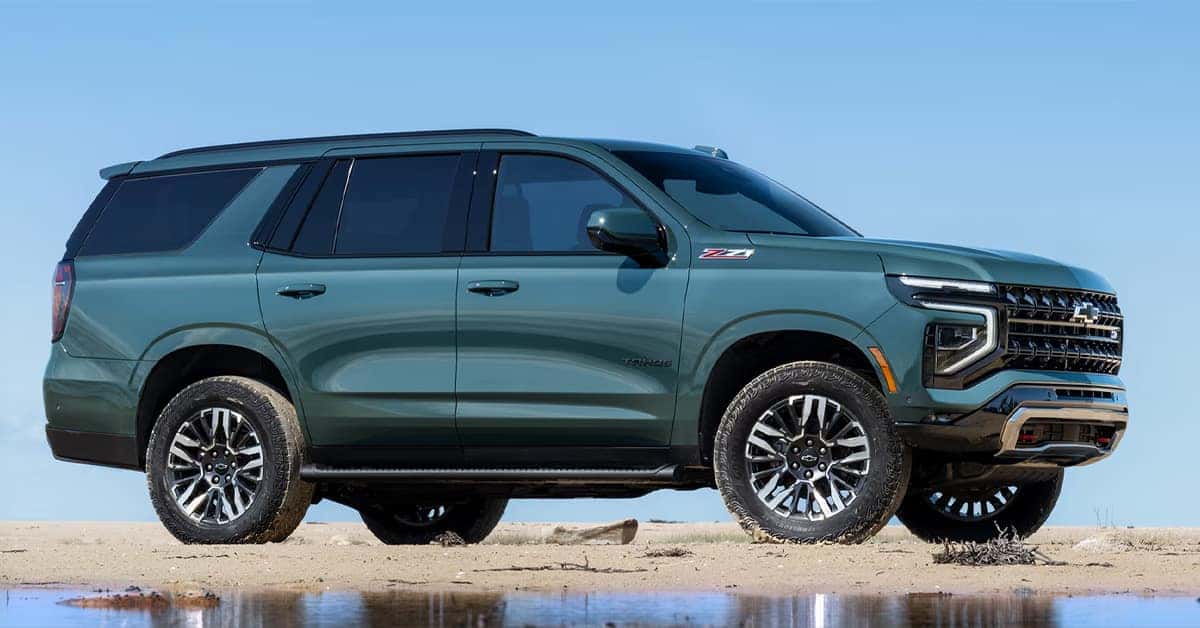
A Chevrolet head-up display (HUD) projects important driving information onto the windshield, helping you check your speed, navigation directions, and other vehicle details without constantly looking down at the instrument cluster. Depending on your model and equipment, you can customize the display’s height, brightness, image position, and available information to make it easier to read while driving.
At Applegate Chevrolet, we help drivers in Flint and across Mid-Michigan understand their vehicles’ features and get more out of their Chevrolet ownership experience. Whether you drive a Silverado, Traverse, or another equipped model, our team can help you learn more about your vehicle’s technology, maintenance, and available services.
Accessing Your Chevrolet Head-Up Display Settings
The controls for your Chevrolet head-up display (HUD) depend on your vehicle’s model year, trim, and infotainment system. For example, drivers comparing a Chevrolet Silverado 1500 with a Chevrolet Tahoe should check the equipment and owner’s manual for their specific vehicle, as available controls can vary. Before making adjustments, park safely and consult your owner’s manual.
Depending on the model, you may access HUD settings through:
- Infotainment touchscreen: Open the Settings or Controls menu and look for Head-Up Display, if available.
- Physical HUD controls: Some models use dedicated dashboard buttons to adjust the projected image.
- Instrument cluster controls: Certain vehicles provide display preferences through steering wheel buttons or cluster menus.
The Chevrolet Traverse and Chevrolet Blazer may have different technology configurations depending on their model year and trim. Check the equipment list for the specific vehicle rather than assuming every model includes a HUD.
Adjusting HUD Height, Brightness, and Image Position
Once you’ve accessed the settings, adjust the projection to suit your seating position and driving conditions. Whether you’re driving a Chevrolet Tahoe on a long highway trip or commuting in a Chevrolet Blazer, the display should be easy to read without pulling your attention away from the road.
Set the Display Height
The height adjustment moves projected information higher or lower on the windshield. Use the available arrow buttons or touchscreen controls to position the image within your natural line of sight. Your seating position affects the ideal setting. If you’re comparing the cabin layouts of the Chevrolet Silverado 1500 and Chevrolet Traverse, remember that your preferred HUD position will depend on your individual driving posture.
Fine-Tune Brightness
Adjusting brightness can help make the projection easier to read in different lighting conditions. A brighter setting may help in daylight, while a dimmer display may be more comfortable at night. Use the designated buttons or on-screen slider, if equipped. The controls available on a Chevrolet Blazer may differ from those on a Silverado 1500, so refer to your vehicle’s manual.
Correct Image Rotation
Certain Chevrolet HUD systems allow image rotation adjustments. If the projection looks tilted, check the HUD settings or instrument cluster menu for an appropriate control. Not every Chevrolet Tahoe, Traverse, or other model offers this adjustment. Consult the owner’s manual to confirm which options are available on your vehicle.
Choosing the Information Displayed on Your Windshield
Depending on the vehicle and its equipment, a Chevrolet head-up display may show driving information that helps you keep your eyes closer to the road.
Available information may include:
- Vehicle speed: Check your current speed in the projected display.
- Navigation directions: View supported turn-by-turn guidance.
- Audio information: See selected track details or other supported audio information.
- Phone notifications: View certain call-related details when supported.
- Driver-assistance alerts: Receive selected safety-system notifications.
- Performance information: Access additional vehicle data on certain equipped models.
For example, a driver considering a Chevrolet Silverado 1500 for regular travel may prioritize speed and navigation information, while someone comparing the Chevrolet Tahoe and Traverse may want to review the technology features available on each trim. The Chevrolet Blazer’s equipment should also be checked individually, as features vary by configuration. Review the specifications for your preferred model before making a purchase decision. A feature available on one trim may not be included on another.
Troubleshooting Common Head-Up Display Issues
If your HUD appears blurry, sits too low, or becomes difficult to read, a few basic checks may help identify the issue.
- The projection is difficult to see: Adjust brightness and height, and consider changing daylight conditions.
- The image appears tilted: Check for an image-position adjustment if your model supports it.
- Information is missing: Review the available display views and confirm that the relevant feature is enabled.
- The display is not appearing: Check the HUD settings and consult the owner’s manual for model-specific troubleshooting.
These checks apply whether you’re driving a Chevrolet Silverado 1500, Tahoe, Traverse, or Blazer equipped with a HUD. However, troubleshooting procedures can vary between models and model years. Avoid making adjustments while driving. If the display continues to malfunction, contact a qualified service professional. Applegate Chevrolet’s Certified Service team can help with maintenance and diagnose concerns that require professional attention.
How do I adjust the height of my Chevy head-up display?
Use the dedicated HUD buttons or the appropriate touchscreen controls, depending on your model. Adjust the projection until it sits comfortably within your line of sight.
Can I change the brightness of my Chevrolet HUD?
Yes, on equipped models. Use the designated brightness buttons or on-screen controls to make the projection easier to read in different lighting conditions.
What information can a Chevrolet head-up display show?
Depending on the model and equipment, it may show vehicle speed, navigation directions, audio information, phone notifications, driver-assistance alerts, and selected performance data.
Does every Chevrolet have a head-up display?
No. HUD availability varies by model, model year, and trim. Check the vehicle’s specifications or owner’s manual to confirm whether your Chevrolet includes this feature.
What should I do if my head-up display stops working?
Check the HUD settings and consult your owner’s manual. If the display remains unavailable or does not function correctly, contact a qualified service department for diagnosis.
Get More From Your Chevrolet at Applegate Chevrolet
Whether you’re considering the Chevrolet Silverado 1500, Chevrolet Tahoe, Chevrolet Traverse, or Chevrolet Blazer, understanding your vehicle’s technology can make everyday driving more convenient. Applegate Chevrolet has served Flint and Mid-Michigan for more than 90 years, offering new and pre-owned vehicles, certified service, and genuine Chevrolet parts.
Drivers from Flint, Burton, Grand Blanc, and Fenton can browse our new Chevrolet inventory or contact our team for assistance. You can also learn more about vehicle controls with our Silverado button guide and Traverse button guide. For routine maintenance information, read our oil change guide. Visit Applegate Chevrolet or contact our team for help with your vehicle’s sales, service, and parts needs.
Get Directions to Applegate Chevrolet
Disclaimer: All information is provided for general informational and entertainment purposes only. While we strive for accuracy, we cannot guarantee that all content is complete, current, or error-free. Any reliance you place on such information is strictly at your own risk. This article may include opinions and is not endorsed by, or officially affiliated with, any vehicle manufacturer or brand. Always consult official sources – such as the vehicle’s owner’s manual, authorized dealerships, or certified professionals – for the most up-to-date and personalized information.
0 comment(s) so far on How to Customize the Head-Up Display in Your Chevy