


How to Delete a Device in Your Chevy Infotainment System
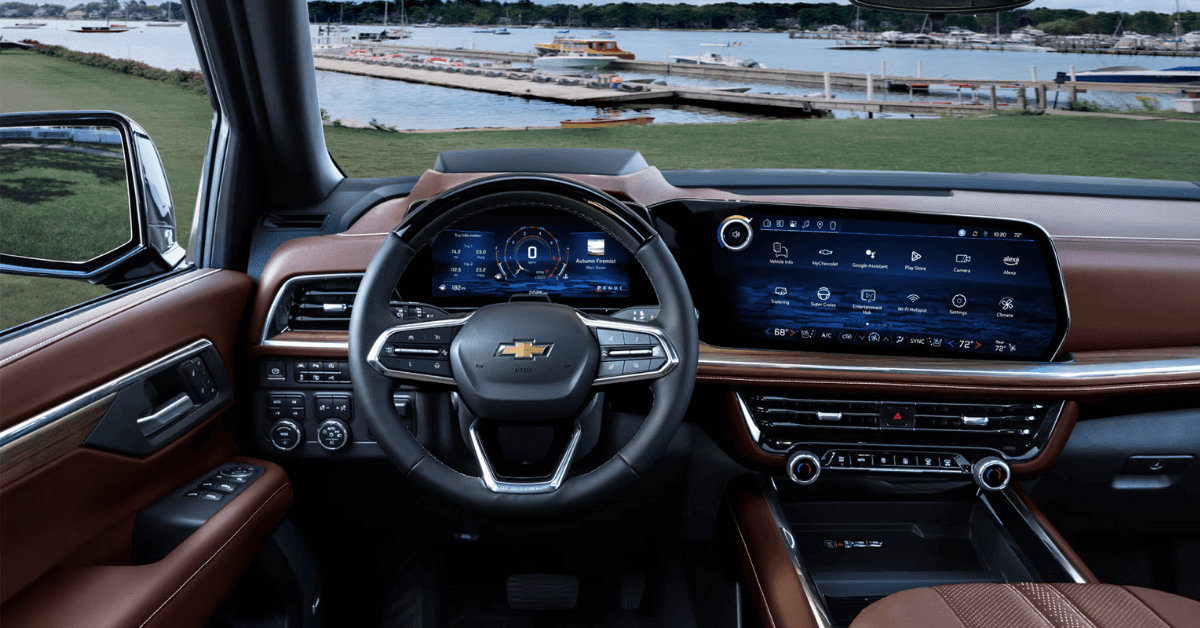
Your Chevy’s infotainment system is designed to make driving easier—but when it’s cluttered with outdated devices, it can slow you down. Whether you’re driving a 2025 Camaro, Equinox, or Suburban, knowing how to delete a device in your Chevy infotainment system is a must for smooth pairing and quick Bluetooth connections. Maybe you sold your old phone, upgraded your device, or just want to clear out the clutter—whatever the reason, the process is simple when you know the steps. If you’re in Flint, Grand Blanc, Davison, or Clarkston and need help managing your connections, the team at Applegate Chevrolet is here to make it easy.
How to Remove a Paired Device from Your Chevy’s Infotainment System
Whether you drive a 2025 Camaro or another Chevrolet model, knowing how to remove an old phone or device from your system can save you time and avoid pairing issues. If your Bluetooth list is full, deleting unused devices will keep your system clean and your connection strong.
Here are the simple steps to delete a device from your Chevy infotainment system:
- Turn on the vehicle. Wait for the Chevy MyLink screen to load fully.
- Go to the Home screen. Tap Settings.
- Select Bluetooth. Some models may list it under Phone Settings.
- Open the device list. You will see all previously paired phones.
- Choose the phone to remove. Scroll and tap the one you no longer use.
- Press Delete or Remove. Hold for a few seconds if needed.
- Confirm the action. A pop-up will ask if you want to remove the phone. Tap Yes.
- Clear it from your phone too. Go to your phone’s Bluetooth list and choose Forget This Device.
Quick Tips:
- You don’t need to disconnect the battery.
- If your screen is slow, restart the system by holding the power button for 10 seconds.
- Make sure the vehicle is parked before starting.
This process helps avoid issues with pairing and keeps your Chevy MyLink clean. It works across most 2025 models, including the Suburban. Keeping only the phones you use often will help your infotainment respond faster and stay more secure.
After these steps, your device will no longer be paired with your vehicle. This helps prevent slow loading or repeated connection attempts from old phones.
If you still see the deleted device after rebooting, try this soft reset method:
- Press and hold the Power button on the infotainment screen for 10–20 seconds.
- Wait for the system to restart.
- Go back to your Bluetooth settings and repeat the delete steps if needed.
This method works well for most 2025 models, including the Camaro. By learning how to delete a device in your Chevy infotainment system, you keep your tech clean and easy to use—no more sorting through a long list of outdated phones.
How to Remove a Phone from Chevy Bluetooth Without Resetting the Whole System
If you drive a 2025 Suburban or a similar model, clearing out old phones is simple. Removing a device from the infotainment screen helps avoid pairing issues and keeps your system running fast.
However, you don’t need to reset your whole radio just to remove a device. If your Suburban or 2025 Camaro still holds on to an old phone, there’s a simple way to manage it. Knowing how to manage devices on your Chevy radio helps avoid full resets and keeps your system smooth.
Here’s how to remove a phone while keeping the rest of your settings intact:
- Start your Camaro. Wait for the infotainment screen to fully load.
- Go to the Home menu. Tap on Settings.
- Select the Bluetooth menu. In some models, it may say Phone Settings instead.
- Open your list of paired phones. Find the one you no longer use.
- Tap on the device name. A small menu will appear.
- Press Remove or Delete. You may need to hold it for a few seconds.
- Confirm the removal. Follow the on-screen prompt to finish.
Why This Method Works
- It only removes one phone.
- You keep all your other settings, like radio presets and saved apps.
- It’s fast and does not affect system updates or maps.
Helpful Tips:
- If the screen lags, press and hold the power button for 10 seconds to refresh it.
- If the phone still appears, double-check that your changes were saved before turning the car off.
- Always delete the connection from your phone’s Bluetooth settings too.
This method keeps your Camaro infotainment system organized and avoids system-wide issues. If you’re managing multiple devices, remove old ones often to keep your system quick and secure.
Why Should You Remove a Bluetooth Device from Your Chevy Infotainment System?
Keeping your Chevy infotainment system clean and up to date helps you avoid common issues with pairing and connection. If you’ve switched phones, sold a device, or shared your 2025 Equinox with someone else, it’s a good idea to remove old entries from your Bluetooth list.
Here’s why:
Too Many Devices Can Slow Your System Down
Every time you start your Equinox, the system tries to connect with saved phones. If too many are listed, the system might lag or freeze.
Old Devices Can Cause Connection Problems
If you’re having trouble pairing a new phone, an old saved device could be the cause. Your Chevy may try to connect with that first. That makes it hard for the new phone to take priority.
Privacy Matters
If you no longer use a phone with your Equinox, remove it. This protects your call logs, contacts, and messages. It’s a smart move when you sell or trade in your vehicle.
To keep your system fast and secure, remove Bluetooth devices you no longer use. This helps avoid:
- Slower response times when loading your screen
- Connection issues when trying to pair a new phone
- Risk of sending calls or texts to the wrong device
Removing a phone from your Chevy Bluetooth system is quick and easy. It takes less than a minute and improves your daily drive. Whether you’re behind the wheel of an Equinox or any other Chevy, a clean device list helps your tech work the way it should.
What to Do if You’re Having Infotainment Pairing Issues in Your Chevy
Pairing issues are common in many modern vehicles. If your 2025 Equinox won’t connect to your phone, you’re not alone. Many drivers in Flint, Grand Blanc, Davison, and Clarkston run into the same problem. The good news? Most of these problems have quick and simple fixes.
First, let’s look at what may cause pairing trouble:
Common Causes of Pairing Problems
- Bluetooth is off on your phone or vehicle
- Your phone’s software is out of date
- The system has too many saved devices
- The signal is weak or blocked
- A past device was not fully removed
If your phone won’t pair, try these steps:
Steps to Fix Chevy Infotainment Pairing Issues
- Restart both systems. Turn your vehicle off, then back on. Restart your phone too.
- Turn Bluetooth off and on. Do this on both the vehicle and your phone.
- Forget the vehicle on your phone. Go to your phone’s Bluetooth list and delete the vehicle name.
- Forget the phone in your vehicle. Go to Settings > Bluetooth > Device List on your screen. Tap your phone name, then press Delete.
- Re-pair the phone. Turn Bluetooth on and follow the steps to pair again. Enter the code if prompted.
- Check for updates. If pairing still fails, your phone or infotainment system may need a software update.
Quick Tip: Try pairing in park with the engine on. Some features are limited while driving.
If you still have trouble with your Equinox or any other model, Applegate Chevrolet can help. Our team will check the system and make sure your phone pairs the right way. We help drivers across Mid-Michigan fix these issues every day.
When to Bring Your Chevy to Applegate Chevrolet for Infotainment Help
Sometimes, even after trying every fix, your system may still not work. That’s when it’s time to call in the experts. If you can’t remove a phone from your Chevy Bluetooth list or your screen won’t respond, Applegate Chevrolet is here to help.
Here are some clear signs your system needs professional attention:
Bring Your Camaro or Other Chevy in If:
- You’ve tried to remove a phone, but it keeps showing back up
- The screen is frozen or buttons don’t work
- The system won’t save new devices
- Bluetooth drops often while driving
- Your phone won’t pair no matter what you do
- You can’t access the settings or device list
These issues may be due to:
- Faulty software
- A failed system update
- Damaged wires or ports
- Internal faults in the screen or head unit
Our trained techs in Flint know how to handle these problems. We’ve helped drivers from Grand Blanc, Davison, and Clarkston solve complex issues quickly. Whether you drive a Camaro or another model, we’ll get your infotainment working the way it should.
Let Applegate Chevrolet take the stress out of your system reset. We’ll check your setup, clear old devices, and walk you through the steps to avoid future issues.
Quick Answers About Managing Devices in Your Chevy Infotainment System
How do I delete a phone from my Chevy?
- Go to Settings > Bluetooth > Device List and tap Delete.
Can I remove more than one device at once?
- No, only one at a time.
Will it erase other settings?
- No, just that device.
Why won’t it be deleted?
- Try a system reset by holding the power button for 10 seconds.
How many devices can it store?
- Most systems store up to 10.
How do I delete a device from Chevy MyLink?
- Tap the device name and select Delete.
Get Expert Help and Stay Connected at Applegate Chevrolet
If you’re still having trouble managing your devices or pairing your phone, the team at Applegate Chevrolet is here to help. Drivers in Flint, Grand Blanc, Davison, and Clarkston trust us with their vehicles—and we’re proud to serve your tech needs, too. Whether you drive a Camaro, Equinox, or Suburban, our service center can guide you through every step.
While you’re visiting, don’t miss your chance to browse our full lineup of new and used Chevrolet models. We have great options for every lifestyle and budget. If you’re not sure where to start, you might want to read more about why so many drivers choose Applegate Chevrolet for their next car purchase.
Looking to save? Learn how you may qualify for special pricing with the GM Friends and Family Discount program. Or, if you’re diving deeper into maintenance, we can also help you understand how to check the transmission fluid on your Chevrolet.
No matter what you drive—or where you’re headed—Applegate Chevrolet is ready to keep your ride connected and your experience stress-free. Contact or visit us.
0 comment(s) so far on How to Delete a Device in Your Chevy Infotainment System