


How to Use the Heads-up Display on Your Chevy [2026]
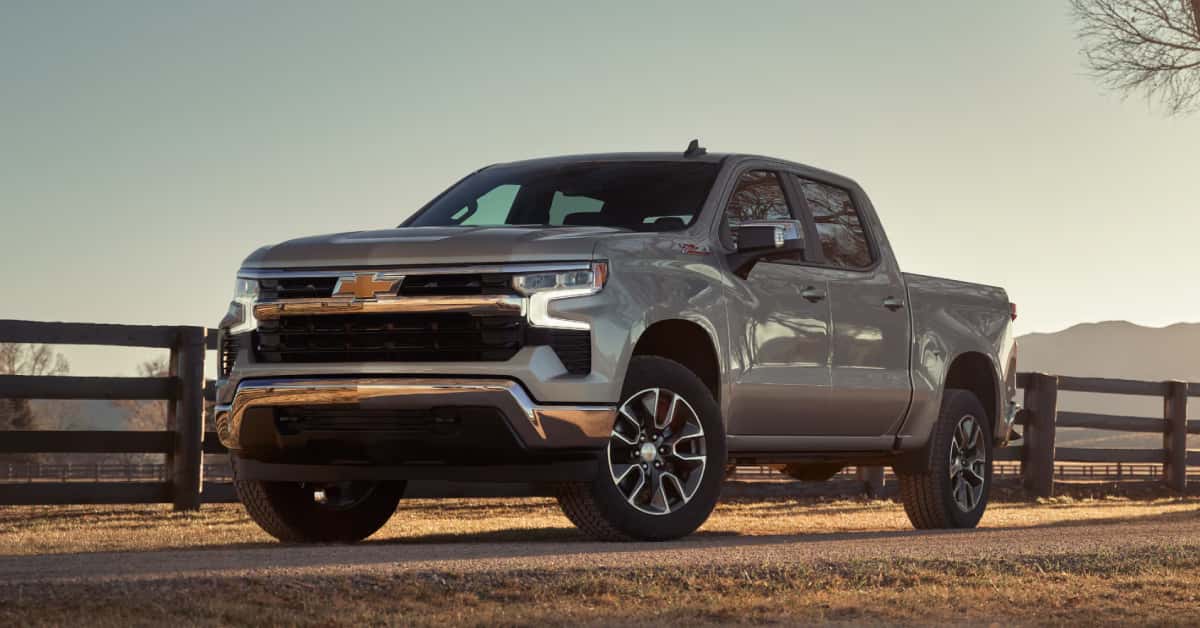
The Chevy Heads-up Display (HUD) makes driving safer and more convenient by projecting key information onto your windshield. With the HUD, you can see speed, navigation directions, and driver assistance alerts without taking your eyes off the road. Vehicles like the Silverado, Equinox, and Colorado give you easy access to HUD controls, adjustable brightness, and customizable display options to fit your preferences.
At Applegate Chevrolet, we are proud to serve drivers in Flint, Grand Blanc, Davison, and Clarkston with expert guidance on all Chevrolet features. Whether you need help learning your HUD, shopping for a new Silverado, or servicing your Equinox, our team is here to make your experience seamless. Call or contact us today and let us help you get the most from your Chevy.
Understanding the Chevy Heads-up Display
The Chevy heads up display brings key driving information right into your line of sight. On a Silverado or other Chevy models, it helps you stay aware without looking down at the dashboard. You can see your speed, navigation prompts, and driver alerts in real time.
Key features of the Chevy heads up display include:
- Speed and cruise control info
- Turn-by-turn navigation directions
- Alerts for safety systems like lane assist or collision warnings
- Adjustable brightness to match driving conditions
- Customizable display zones for preferred information
The display is easy to use and designed to keep your focus on the road. With the HUD, even busy streets or long drives in Flint, Grand Blanc, Davison, and Clarkston feel more controlled. Adjustments are simple, and the display can be tailored to fit your driving style.
Turning On and Off the Chevy HUD
Activating your HUD is simple and puts key driving info right in your line of sight. Whether you drive a Silverado or another Chevy, knowing how to use the Chevy HUD buttons makes the display easy to control.
How to turn the HUD on or off:
- Press the HUD button located to the left of the steering wheel
- A small light or icon will appear to show the display is active
- Press the same button again to turn the HUD off
- Some models may require pressing and holding for a few seconds
Turning the HUD on ensures you can see speed, navigation, and driver assistance info clearly. Turning it off can reduce distractions when you prefer a minimal dashboard view. Proper use of the Chevy HUD buttons helps drivers in Flint, Grand Blanc, Davison, and Clarkston stay informed safely.
Adjusting Height and Brightness on the Chevy HUD
Making your HUD easy to see improves safety and comfort while driving. On a Silverado or other Chevy, simple adjustments let you customize the display to your preference. This is especially helpful if you have a Chevy heads up display upgrade.
To adjust height and brightness:
- Use the up and down arrows on the HUD control panel to change display height
- Press the brightness +/- or sun icon button to make the display lighter or dimmer
- Check the HUD view from your driving position to ensure it is comfortable and visible
- Some Silverado models allow fine-tuning via the infotainment screen for precise control
Properly adjusting the HUD ensures speed, navigation, and other key info are clear at a glance. These settings help drivers in Flint, Grand Blanc, Davison, and Clarkston keep their focus on the road while staying informed.
Changing the Information Displayed on Your HUD
The Chevy heads up display lets you see important details without taking your eyes off the road. On a Silverado, you can customize what shows on the HUD for better focus and convenience.
To change the displayed information:
- Press the INFO button on your HUD control panel to cycle through different views
- Options often include speed, navigation, or driver assistance alerts
- Some models let you choose which alerts or info appear in each zone
- Use the infotainment screen to access more detailed HUD settings and custom layouts
- Save your preferred display for consistent use every time you drive
Customizing your HUD helps drivers in Flint, Grand Blanc, Davison, and Clarkston see what matters most. This keeps information clear and reduces distractions while on the road.
Advanced Customization Through the Infotainment Screen
The Chevy heads up display can be fully customized using your Equinox’s infotainment screen. This allows more control over what you see while driving.
Key customization options include:
- Adjusting height, brightness, and rotation for a clear view
- Selecting which information zones show speed, navigation, or alerts
- Creating a custom layout for easier reading at a glance
- Saving preferred settings for quick access each time you drive
- Accessing advanced features that aren’t available on the physical HUD buttons
Using the infotainment screen for customization helps drivers in Flint, Grand Blanc, Davison, and Clarkston tailor the HUD for safety and convenience.
Key Chevy HUD Controls and Buttons
The Chevy HUD offers simple, intuitive controls that help you manage your display without distraction. On a Colorado, these buttons make it easy to adjust settings while driving.
Main controls include:
- HUD power button: Turns the display on or off quickly
- Up/Down arrows: Adjust the height of the display for your line of sight
- INFO button: Cycle through speed, navigation, or driver assist info
- Brightness +/- buttons: Make the display lighter or dimmer for day or night use
- Infotainment menu access: Allows advanced customization beyond the physical buttons
Using these buttons ensures your HUD is clear, readable, and personalized for safe driving in Flint, Grand Blanc, Davison, or Clarkston.
Assistance from Applegate Chevrolet
If you need help learning or adjusting your Chevy HUD controls, Applegate Chevrolet is ready to assist. Our team can walk you through every step for your Silverado or other Chevy models. We offer hands-on guidance to make sure your display works the way you want.
Services include:
- Explaining all Chevy HUD controls clearly and simply
- Demonstrating how to adjust height, brightness, and displayed information
- Helping with advanced settings through the infotainment screen
- Answering any questions about HUD features for safe and convenient use
Drivers in Flint, Grand Blanc, Davison, and Clarkston can rely on our experts to make using the Chevy HUD stress-free.
Frequently Asked Questions: Chevy Heads-up Display
How do I use the heads-up display on my Chevy?
Press the HUD button to turn it on. Use the INFO button to cycle through speed, navigation, and driver assistance information.
Can I customize what information appears on the HUD?
Yes, you can select which data is shown using the HUD settings menu on your infotainment screen.
How do I adjust HUD brightness and position?
Use the up/down buttons to adjust height and the brightness +/- button to make the display lighter or dimmer.
Is the HUD available on all Chevy models?
No, the HUD is available on select models like the Silverado, Equinox, and Colorado.
Does the HUD work with navigation directions?
Yes, it can display turn-by-turn directions when your vehicle’s navigation system is active.
These answers help drivers quickly understand how to operate and personalize their Chevy heads-up display safely and effectively.
Stay Connected and Maintain Your Chevy
Applegate Chevrolet is here to help drivers in Flint, Grand Blanc, Davison, and Clarkston get the most out of their vehicles. Whether you’re looking for a Silverado, Equinox, or Colorado, our team can guide you to the right model and show you how to use features like the heads-up display with ease.
We also help keep your Chevy in top shape. If you want to prevent common issues or maintain your vehicle’s performance, check out our guides on battery care, brake pad sensor, or fixing brake lights. These tips ensure your vehicle runs safely and efficiently. Call or contact Applegate Chevrolet today to learn more and see our full selection of vehicles. Visit us to learn more.
Get Directions to Applegate Chevrolet
Disclaimer: All information is provided for general informational and entertainment purposes only. While we strive for accuracy, we cannot guarantee that all content is complete, current, or error-free. Any reliance you place on such information is strictly at your own risk. This article may include opinions and is not endorsed by, or officially affiliated with, any vehicle manufacturer or brand. Always consult official sources – such as the vehicle’s owner’s manual, authorized dealerships, or certified professionals – for the most up-to-date and personalized information.
0 comment(s) so far on How to Use the Heads-up Display on Your Chevy [2026]